I use mailbox rotation when one inbox can’t handle my daily email volume within its sending cap. For 300 emails across 20 inboxes, that means 15 per inbox, including follow-ups. If four inboxes pause, I queue 60 emails instead of pushing the others harder.
My rule: <u>rotation spreads volume, not risk</u>. It won’t fix bad lead data, blocked accounts, or domain problems.
Before sending, I check SPF, DKIM, and DMARC, verify leads, and subtract warm-up and other email traffic from each inbox’s capacity. Then I:
- Set mailbox-wide caps and stagger sends.
- Keep follow-ups with the original sender and apply reply, unsubscribe, and hard-bounce stops across the pool.
- Check inbox health daily, pause troubled senders, and resume slowly after fixing the cause.
- Add inboxes only when healthy capacity falls short, not to replace failing accounts.
Provider limits are ceilings, not sending targets.
How to Scale Cold Outreach With Inbox Rotation
sbb-itb-f6b0739
Calculate Capacity and Set Sending Limits
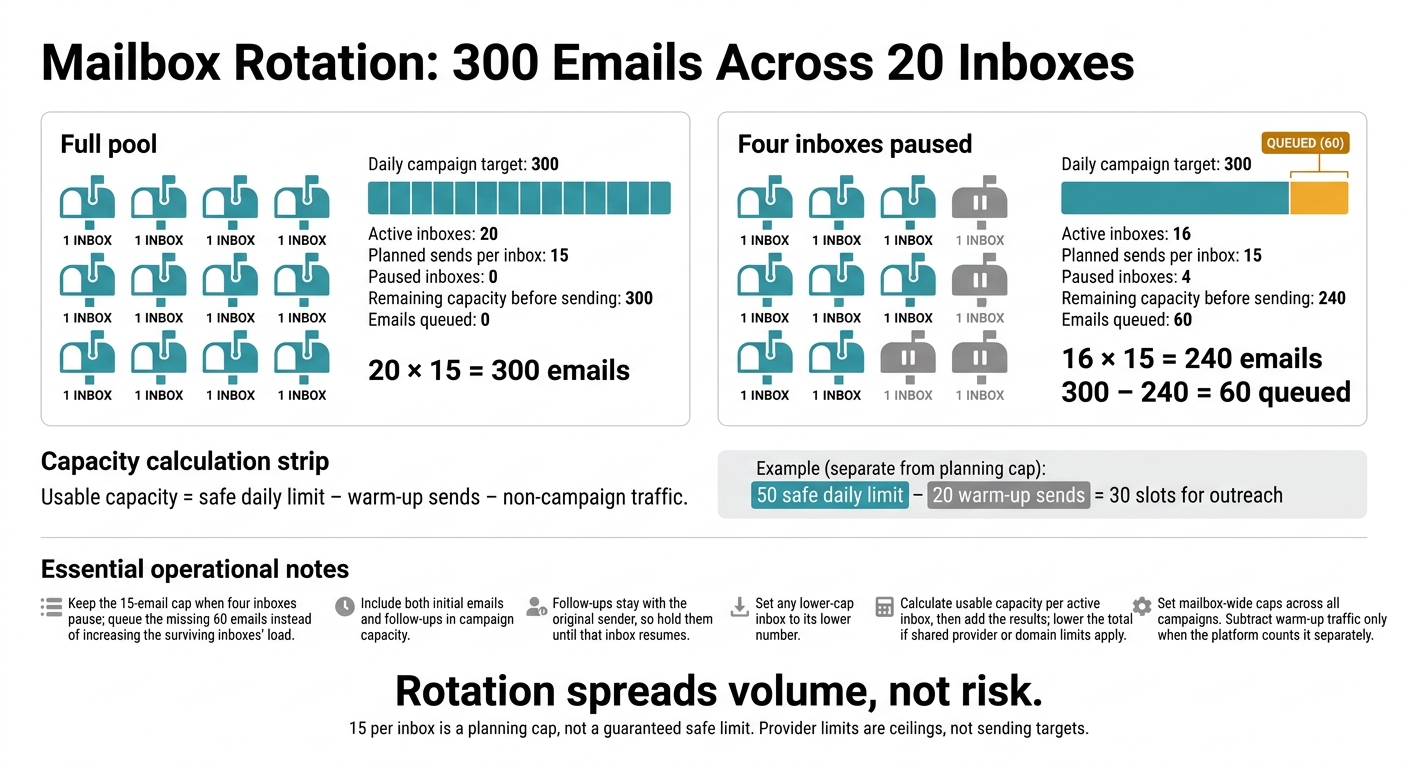
Mailbox Rotation: 300 Emails Across 20 Inboxes
Turn your prepared inboxes into a send plan with this formula: Usable capacity = safe daily limit − warm-up sends − non-campaign traffic. Include both initial emails and follow-ups in campaign capacity.
Calculate capacity for each active inbox, then add the results. Lower the total if shared provider or domain limits apply. For example, a safe daily limit of 50 minus 20 warm-up sends leaves 30 slots for outreach.
Example: Split 300 Daily Emails Across 20 Inboxes
Divide your daily campaign volume across the active inbox pool.
Per-inbox cap = total daily campaign sends ÷ active inboxes. For 300 total emails - including follow-ups - across 20 active inboxes, plan 15 per inbox. This is a planning cap, not a guaranteed safe limit.
Metric Full pool Four inboxes paused Daily campaign target 300 300 Active inboxes 20 16 Planned sends per inbox 15 15 Paused inboxes 0 4 Remaining capacity before sending 300 240 Emails queued 0 60 Keep the 15-email cap when four inboxes pause; queue the missing 60 emails instead of increasing the surviving inboxes’ load. Follow-ups stay with the original sender, so hold them until that inbox resumes. Set any lower-cap inbox to its lower number.
Connect Inboxes and Set Per-Inbox Caps
Connect and verify each mailbox in EmailBison, Smartlead, Instantly, or PlusVibe. Set mailbox-wide caps, not just campaign caps. Every campaign using an inbox counts toward that inbox’s limit. Subtract warm-up traffic only when the platform counts it separately.
Stagger Sends and Test Before Launch
Spread sends across an 8 to 10 hour window during each recipient’s local business hours. Add random delays of 60 to 210 seconds, and stagger inbox start times rather than starting them all at once.
Before scaling, test email placement in Gmail and Outlook. Also verify that unsubscribe suppression works across the entire inbox pool.
When to Pause, Rest, or Add Inboxes
Once the pool is live, use the signals below to decide when to pause, rest, or add inboxes. Rotation works only if you pause unhealthy inboxes promptly and add healthy capacity slowly.
Pause Inboxes With Delivery Problems
When one inbox underperforms but the rest of the pool stays stable, treat it as a mailbox-level delivery issue. If performance drops across the pool, check the domain, provider, and campaign content for a shared problem.
| Symptom | Likely cause | Immediate action |
|---|---|---|
| One inbox shows sharply worse placement | Mailbox-specific filtering or authentication trouble | Pause it; check filtering and authentication. Do not add inboxes until fixed. |
| SPF, DKIM, or DMARC failures | Incorrect authentication setup | Pause affected senders; correct and verify records. Do not add inboxes until fixed. |
| Repeated or rising bounces | Invalid addresses or poor lead data | Pause the affected campaign; verify the list. Do not add inboxes until fixed. |
| Complaints or blocks | Poor targeting or reputation damage | Pause affected traffic; review targeting. Do not add inboxes until fixed. |
| Unusual throttling or temporary rejections | Provider rate restrictions | Reduce or suspend sends; inspect provider responses. Do not add inboxes until fixed. |
| Placement drops across several inboxes | Shared domain/provider reputation or content issues | Pause affected groups; compare shared factors. Do not add inboxes until fixed. |
Rest Inboxes and Resume Gradually
Rest gives you time to diagnose the problem. It doesn't reset the inbox. Before resuming, check SPF, DKIM, DMARC, blocklist status, account status, and list quality.
Once you've fixed the cause, resume below the previous sending cap. Hold that volume for 3 to 5 days before increasing it. Google and Microsoft limits can use a sliding window, so a new day may not reset capacity.
Expand only after the issue is fixed and the remaining inboxes stay within their caps.
Add Inboxes When Healthy Capacity Falls Short
Estimate how many inboxes you need with target daily sends ÷ safe sends per inbox. Round up, then check whether shared domain and provider limits reduce the total you can use.
Add prepared inboxes only when demand stays above the pool's safe capacity. Don't use them to cover a temporary spike or make up for failing accounts. New accounts on a damaged domain can inherit the same problem, so fix targeting and list quality before adding more.
Next, check inbox health daily and pool capacity weekly.
Monitor Mailbox Health and Pool Capacity
Check Inboxes Daily and Pool Trends Weekly
Once the pool is live, use monitoring to decide when to pause, rest, or expand it. Check daily for disconnected accounts, authentication failures, sending-limit hits, and sudden drops in open rates.
Each week, compare performance by domain and provider. Google classifies Gmail bulk senders at the primary-domain level, so check that domain’s combined traffic too. Track weekly volume and performance to see when the pool is approaching its safe sending limit.
Automate Pauses and Apply Suppression Rules
Set rules to pause sending after authentication failures or bounce spikes. Require manual approval before reactivating an inbox. For Gmail traffic, Google recommends keeping the Postmaster Tools spam rate below 0.10%, with 0.30% as the absolute ceiling.
Use automation to stop problems before they spread. Sync replies across connected inboxes and stop a prospect’s sequence when they reply, no matter which inbox receives it. Apply unsubscribe and hard-bounce suppression across the workspace to protect every sender. Keep each thread with its original sender.
Use these signals to decide whether to continue sending, pause, or add capacity.
Conclusion: Mailbox Rotation Checklist
Check authentication, increase volume gradually, stagger sends, and monitor mailbox and domain health. Pause or rest inboxes as needed. Expand only when sustained demand exceeds healthy pool capacity, not to make up for failing inboxes.
FAQs
How do I determine a safe sending cap?
For new domains, start with 20 to 50 emails per day per mailbox. Adjust volume based on each mailbox’s bounce rate, spam complaints, and inbox placement tests, rather than relying on fixed limits alone.
Keep bounce rates low and inbox placement high. If you see deferrals, blocks, or increasing bounce rates, pause or reduce sending immediately. Wait 24 hours before resuming at a lower rate.
Should my sending inboxes use different domains?
Yes, using different domains is strongly recommended. You can rotate multiple inboxes on one domain, but they share its reputation and the risk of being classified as a bulk sender. If the domain gets flagged, every inbox tied to it may be affected.
For long-term email health, spread mailboxes across multiple domains. A common approach when scaling is two to three inboxes per domain. This reduces the risk that one domain’s delivery problems affect your entire outreach program.
What if a paused inbox never recovers?
If a paused inbox still doesn’t recover after you fix DNS settings, authentication records, or warm-up issues, permanently remove it from rotation and deactivate it in your sending platform. Continuing to use it can further harm your domain reputation and deliverability.
Before replacing it, make sure you have a healthy reserve inbox that’s been warmed up for at least 14 days.